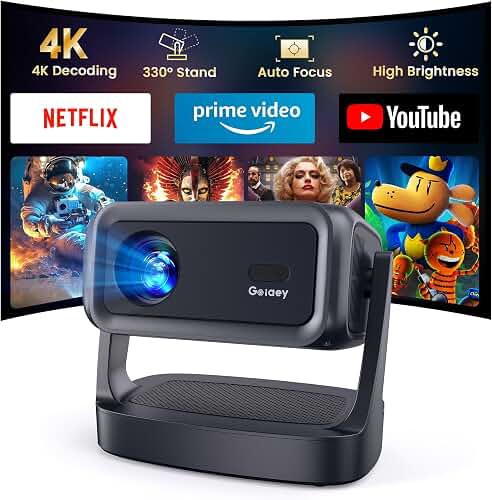
Finding the best projector deaf hard of hearing closed captions setup requires looking beyond brightness and resolution. Deaf and hard-of-hearing viewers need projectors that render captions with crisp clarity, support customizable caption fonts through streaming apps and external decoders, and maintain caption visibility across varied content. Because most home theater projectors don't decode broadcast CC signals directly, the real "best" projector for accessibility is one that pairs a sharp native panel with HDMI-CEC compatibility, strong contrast for caption legibility, and seamless support for streaming-platform caption customization. This 2026 guide explains exactly what to look for and how to dial in caption readability on the big screen.
Why Projectors Handle Closed Captions Differently Than TVs
Televisions sold in the United States are legally required to include an ATSC tuner and a built-in closed caption decoder that can render captions over any incoming signal, with user-controlled font, size, color, background, and edge styling. Home theater projectors are classified as "display monitors," which means they are exempt from that FCC mandate. The practical consequence: the projector itself almost never decodes or styles captions. Instead, captions are generated by the upstream source — a streaming stick, Blu-ray player, cable box, gaming console, or laptop — and burned into the video signal the projector receives.
The best best projector deaf hard of hearing closed captions for your situation depends on how you plan to use it and where.
This sounds like a limitation, but it actually gives deaf and hard-of-hearing viewers more flexibility, not less. Streaming platforms in 2026 offer far richer caption customization than the on-TV decoders of a decade ago. Netflix, Disney+, Apple TV+, Max, Hulu, Prime Video, and Paramount+ all support adjustable font family, point size, color, opacity, background fill, edge style, and even drop-shadow rendering — and those settings travel with the user's account regardless of which projector is displaying them. So the question becomes: which projectors render those custom caption fonts most legibly?
What to Look For in a Projector for Caption Readability
Five technical attributes have an outsized impact on whether captions on a projected image are easy to read at the back of a 12-foot room.
Native 4K or Sharp 1080p Resolution
Caption text is composed of thin diagonals and curves that pixelate badly on low-resolution panels. A native 4K (3840 x 2160) DLP or LCD chip renders 24-point caption text with smooth edges, while a true 1080p panel is fully adequate for screens up to about 110 inches. Avoid 720p projectors and avoid "4K-enhanced" XPR shifting if the underlying panel is only 1080p and you sit close — pixel shift can soften fine text edges.
High Native Contrast Ratio
Caption legibility is dictated by contrast between the caption text and the scene behind it. A projector with strong native contrast (10,000:1 or better for LCD, infinite contrast or a deep black level for DLP/LCoS) keeps white-on-black caption fills crisp, while a washed-out projector turns the background fill behind captions into a hazy gray that competes with the letterforms. Laser and LED light engines hold contrast more consistently as the bulb ages compared to traditional UHP lamps.
HDMI-CEC and ARC Support
HDMI-CEC lets a single remote control caption toggling on the source device without forcing the viewer to dig into menus mid-film. ARC (Audio Return Channel) matters because many hard-of-hearing viewers also use a soundbar with dialogue-enhancement modes, and ARC makes that audio path one-cable simple. Look for HDMI 2.1 with eARC on premium models.
Adequate Brightness for Your Viewing Conditions
Captions become unreadable the instant ambient light washes out the image. For a fully light-controlled room, 2,000 ANSI lumens is plenty. For a living room with some daytime viewing, target 2,500–3,500 ANSI lumens. Our projector lumens guide walks through how to match brightness to your room.
Low Input Lag for Caption Sync
If you use an external real-time captioning service (such as Ava, Live Transcribe, or Otter projected from a phone via AirPlay or Chromecast), input lag becomes critical. Look for a projector with a Game Mode that drops latency below 30 ms at 1080p/60.
Recommended Projector Categories for Deaf and Hard-of-Hearing Viewers
Rather than naming a single "best" model — which depends heavily on your room, budget, and content mix — it is more useful to think in categories. Each category has trade-offs that affect caption readability.
Native 4K Long-Throw Projectors ($1,500–$3,500)
This is the sweet spot for deaf viewers who watch a lot of subtitled foreign films, anime, or prestige streaming dramas. A native 4K DLP from BenQ, Optoma, or Epson renders 11-point captions cleanly even when projected at 120 inches, and DCI-P3 color coverage of 90%+ keeps colored caption fonts (yellow for emphasis, cyan for off-screen speakers) accurate. Pair it with a motorized screen of moderate gain (1.0–1.3) and you have a setup where captions remain crisp from any seat. Browse options in our best 4K home theater projectors roundup.
4K Ultra-Short-Throw (UST) Laser Projectors ($2,000–$5,000)
UST projectors sit inches from the wall, eliminating the shadow problem when someone walks across the room — a small but real benefit for households where a deaf viewer relies on captions and cannot afford to lose any frame. Triple-laser UST units also produce exceptional color volume, which helps differentiate speaker-color-coded captions. The trade-off: USTs throw a large image even at minimum offset, and any wall texture below the screen will distort fine caption pixels. A dedicated ALR (ambient light rejecting) UST screen is mandatory.
1080p Budget Projectors ($500–$1,000)
For a first home theater on a tight budget, a quality 1080p DLP from BenQ or Epson will display captions clearly at screen sizes up to 110 inches. Skip anything labeled "native 720p, supports 1080p" — the resolution downscaling makes caption text noticeably blurry. Our best home theater projectors under $1,000 guide highlights the models that hit this brief.
Portable LED/Laser Projectors ($400–$900)
Portable units are tempting for deaf viewers who want big captions in any room, but the small light engine forces a trade-off: brightness drops below 700 ANSI lumens in most models, so captions wash out the instant a light is turned on. Reserve portables for night viewing, dim bedrooms, or fully shaded camping setups.
How to Customize Caption Fonts on Streaming Devices
Because the projector simply passes the signal through, all caption customization happens on the source device or within the streaming app. Here is where the major platforms expose those controls in 2026.
Apple TV 4K
Settings > Accessibility > Subtitles and Captioning > Style. Apple offers eight font families (including the dyslexia-friendly Mono San Francisco), variable point sizes, and per-style background opacity. Styles travel across all apps that honor system captions, including Apple TV+, Netflix, and Disney+.
Roku and Roku-Powered Smart Displays
Settings > Accessibility > Captions. Roku exposes font, text style (drop shadow, raised, depressed, outlined), text size, color, opacity, and background opacity. The settings apply to the Roku Channel and most third-party apps that follow Roku's caption SDK.
Amazon Fire TV
Settings > Accessibility > Closed Captions. Fire TV provides font family, size, color, edge effect, and background color controls. Prime Video honors these globally; some third-party apps override.
Google TV and Chromecast
Settings > System > Accessibility > Captions. Choices include text style (font family, size, color, opacity) and background style. YouTube, YouTube TV, and most Google TV apps follow the system settings.
In-App Overrides
Netflix and Disney+ both maintain account-level caption profiles that override the device settings on every Netflix or Disney+ app you log into. If you share a household with hearing viewers who prefer minimal captioning, set the account-level profile to your preferred font, size, and color so it follows you across rooms.
Setup Tips for Maximum Caption Readability
The projector and source matter, but installation can make or break caption visibility.
Choose the Right Screen
A white matte screen with 1.0–1.3 gain is the safest choice for caption sharpness because it preserves contrast at wide viewing angles. Avoid high-gain (1.6+) screens — they brighten the center but darken edges, which can make captions positioned in the lower third of the image look uneven. For ambient light viewing, a gray ALR screen with negative-gain properties keeps the white background fills behind captions readable even with lamps on. Our guide to choosing a projector screen walks through gain, material, and aspect ratio decisions.
Mount at the Right Height
Captions traditionally render in the lower fifth of the frame. If you ceiling-mount the projector too low or the screen too high, the bottom row of captions can fall into the bezel or beneath the screen entirely on widescreen content with letterboxing. Ceiling-mount the projector so the projected image lands with at least 8 inches of clear screen below the typical caption line — and account for letterboxed 2.39:1 content where captions sometimes render in the black bar below the picture.
Control Ambient Light
Captions live or die by contrast. Blackout curtains, dim bias lighting placed behind the screen, and bulbs in the 2700K range elsewhere in the room give caption text the cleanest backdrop. Avoid overhead spotlights pointed at the screen.
Calibrate for Text Sharpness
Most projectors ship with sharpness pushed too high, which creates haloing around caption letters. Drop the sharpness slider to about 25–30 percent and re-evaluate. Turn off any "detail enhancement" or "super resolution" feature when watching subtitled content — those algorithms are tuned for textures and faces, not text glyphs.
What About Real-Time Captioning Apps?
Live captioning apps like Ava, Otter, and Google Live Transcribe are increasingly used for sports broadcasts, live news, and theatrical performances without official captions. To project these in real time, mirror your phone or tablet via AirPlay (Apple TV) or Chromecast (Google TV) and place the captioning app in a floating window or split-screen mode. Latency is your enemy here: stick with a projector that supports 1080p/60 with sub-30 ms input lag, and use a wired HDMI capture path rather than wireless mirroring whenever possible.
Audio Considerations Even for Deaf Viewers
Many hard-of-hearing viewers retain partial hearing and benefit from a soundbar with a dialogue-enhancement mode that compresses dynamic range and lifts vocal frequencies. Bluetooth LE Audio and Auracast broadcasts let modern hearing aids stream directly from the projector or AV receiver — a major 2026 accessibility improvement. Check the projector specs for Bluetooth 5.3 LE Audio support if you wear hearing aids.
Frequently Asked Questions
Can any home theater projector display closed captions?
Yes, any modern projector will display captions that are generated upstream by a streaming device, Blu-ray player, cable box, or game console. The projector itself does not decode broadcast CC signals — it simply shows whatever the source sends. As long as you enable captions in the streaming app or on the source device, they will appear on the projected image.
What is the best projector font size for a 120-inch screen?
On a 120-inch screen viewed from 10–14 feet, set the caption point size to "Medium" or 18–24 points depending on the platform. Many deaf viewers prefer "Large" (28–36 points) for action-heavy films where the eye is darting between captions and the picture. Apple TV, Roku, and Fire TV all let you preview the size before committing.
Do 4K projectors render caption text more clearly than 1080p projectors?
For screens larger than about 100 inches viewed from closer than 12 feet, native 4K resolution noticeably sharpens caption letterforms, especially serif fonts and the curves on lowercase letters. For screens 100 inches or smaller, a quality 1080p projector renders captions clearly enough that most viewers cannot tell the difference at normal seating distance.
Can I customize the closed caption font directly in the projector menu?
Almost never. Home theater projectors are display monitors and do not have built-in caption decoders. Caption font, size, color, and background are controlled entirely by the source device — your Apple TV, Roku, Fire TV, or smart projector's app layer. Set your caption preferences there, and they will appear identically on any projector you use.
Will a laser projector make captions easier to read than a lamp projector?
Yes, in two ways. Laser light engines hold consistent brightness for 20,000+ hours, so captions never dim as a bulb ages. Laser projectors also tend to have better black levels and color volume, which improves the contrast between caption text and the background scene. The trade-off is higher upfront cost.
Are short-throw projectors better for deaf viewers?
Short-throw and ultra-short-throw projectors eliminate the shadow problem when someone walks between the projector and the screen — a meaningful benefit when a deaf viewer cannot afford to miss caption frames. However, USTs demand a perfectly flat wall or dedicated screen, and any texture distorts fine caption pixels. If your wall is smooth and you can budget for an ALR screen, a UST is an excellent choice.
How do I set up a projector to caption a live sports broadcast?
Most live sports on streaming services (ESPN+, Peacock, YouTube TV) include broadcaster-provided captions you can toggle in the app. For broadcasts without captions, use a real-time captioning app on a phone or tablet, mirror it to the projector via AirPlay or Chromecast, and position the captioning window in the lower third. For latency-sensitive applications, hardwire the source via HDMI. Our projector setup guide covers the cabling and configuration steps.
Choosing the best projector deaf hard of hearing closed captions setup ultimately comes down to pairing a sharp, high-contrast projector with a source device whose caption customization meets your needs. Lock in native 4K (or sharp 1080p), confirm HDMI-CEC and adequate brightness, and let the streaming platform handle caption font styling. With the right combination of hardware and software, projected captions become as legible and customizable as anything on a flat-panel television — at four times the screen size.
Key Takeaways
- Choosing the right best projector deaf hard of hearing closed captions means matching the key features to your specific needs and budget
- Read real customer reviews and check the return policy before you commit
- Also covers: projector closed caption font size
- Also covers: accessibility projector deaf viewers
- Also covers: best projector with caption customization
- Compare value across models — the priciest option is not always the best fit